Staff
Learn how to manage staff and admins, add guests from other schools, and more.
Contents
- Staff vs Admin
- Viewing staff and admins
- Managing staff and admins
- Guest staff and admins
- Things to know
Staff vs Admin
Every non-student user has one of two roles: Staff or Admin.
- Staff can see everything – students, engagement, and reports – but can't change anything or run exports.
- Admins can do everything Staff can, plus add and edit students and staff, and run exports.
Viewing staff and admins
The Staff page shows all staff and admins in your school.
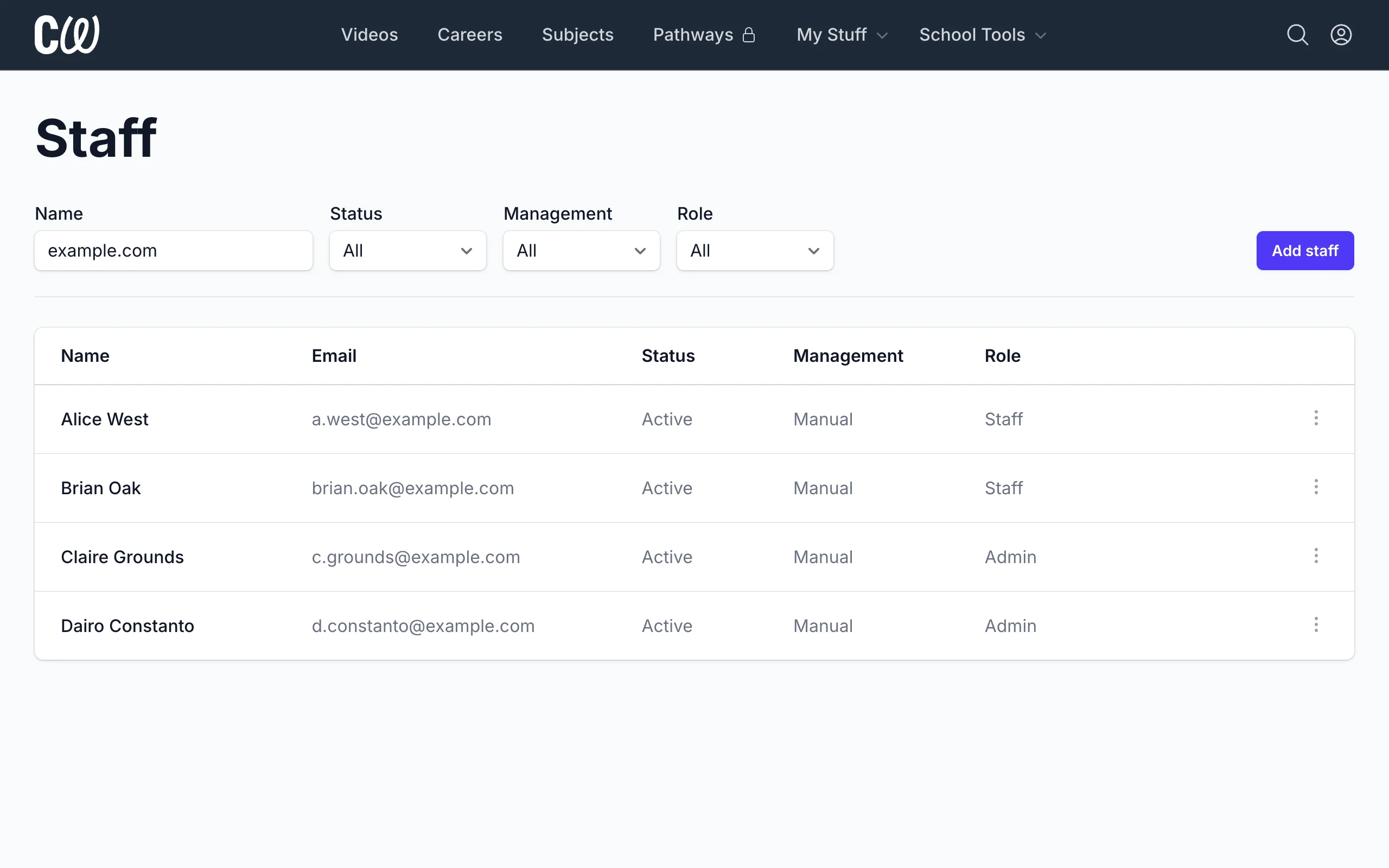
You can filter staff and admins by:
- Name (First/last name or email)
- Status (All / Active / Suspended)
- Role (All / Staff / Admin)
Managing staff and admins
Staff and admins aren't synchronised from your MIS, so you need to add, update, and remove them manually.
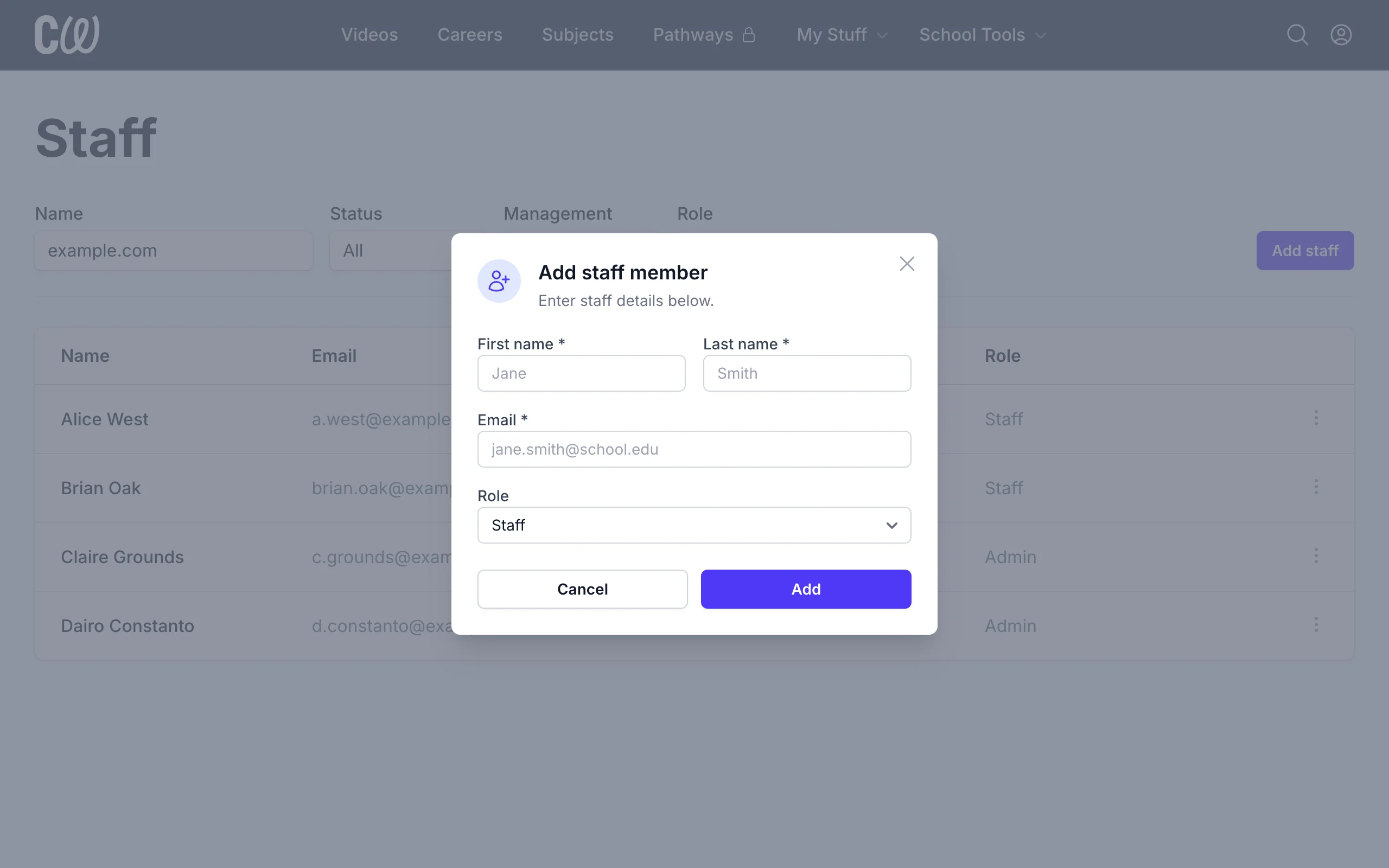
You must be an Admin to add or edit other staff or admins.
- Click Add staff, or select Edit from the ⋮ menu at the end of an existing person's row.
- Add or update their details, including their role.
- Click Save.
If you want to delete a staff or admin user, click ⋮ at the end of their row and select Delete. Deleted staff and admins can't be restored, so check you have the right person.
Guest staff and admins
If you add staff or admins who are already part of another school, they will join your school as guests.
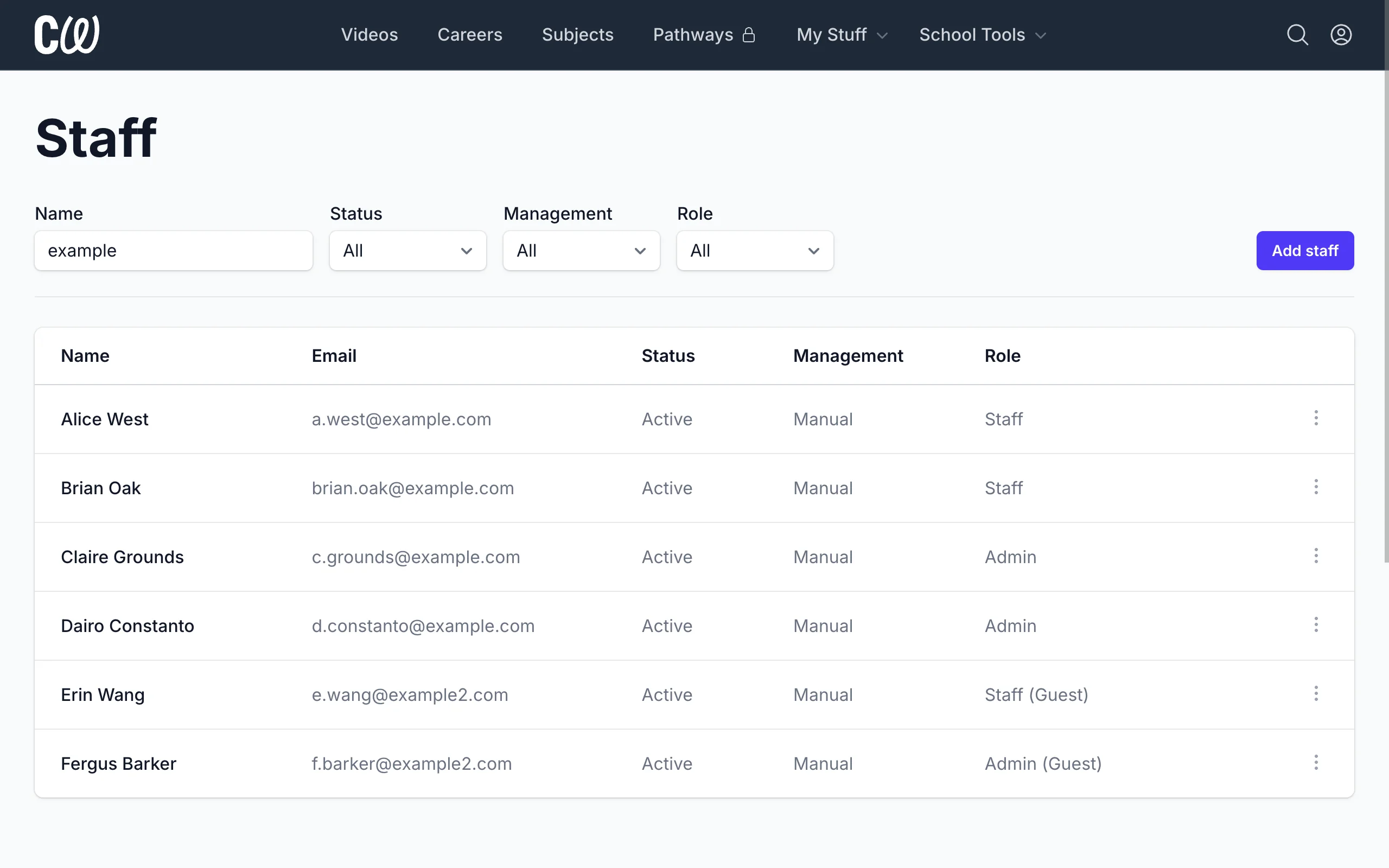
Guests have access to your student data, but their accounts are managed by their home school – you can't set or change a guest's name, email, or role, and only their home school can delete their account. If their home school changes their role, it changes in your school too.
If you want to remove a guest from your school, click ⋮ at the end of their row and select Remove.
Things to know
- Staff can be suspended instead of deleted, which blocks their access but keeps their record and activity.
- Staff who created personal Coffee With accounts using their school email address are converted to school accounts when they're added to your school.
- Staff and admin emails must use one of your school's approved email domains. For data protection purposes, you can’t add staff using non-approved domains.