Students
Learn how to view student activity, add custom tags, sync your MIS data, and more.
Contents
- Viewing and filtering students
- Viewing a student’s activity
- Synchronising students
- Adding custom tags
- Adding students manually
- Things to know
Viewing and filtering students
The Students page shows all students in your school.
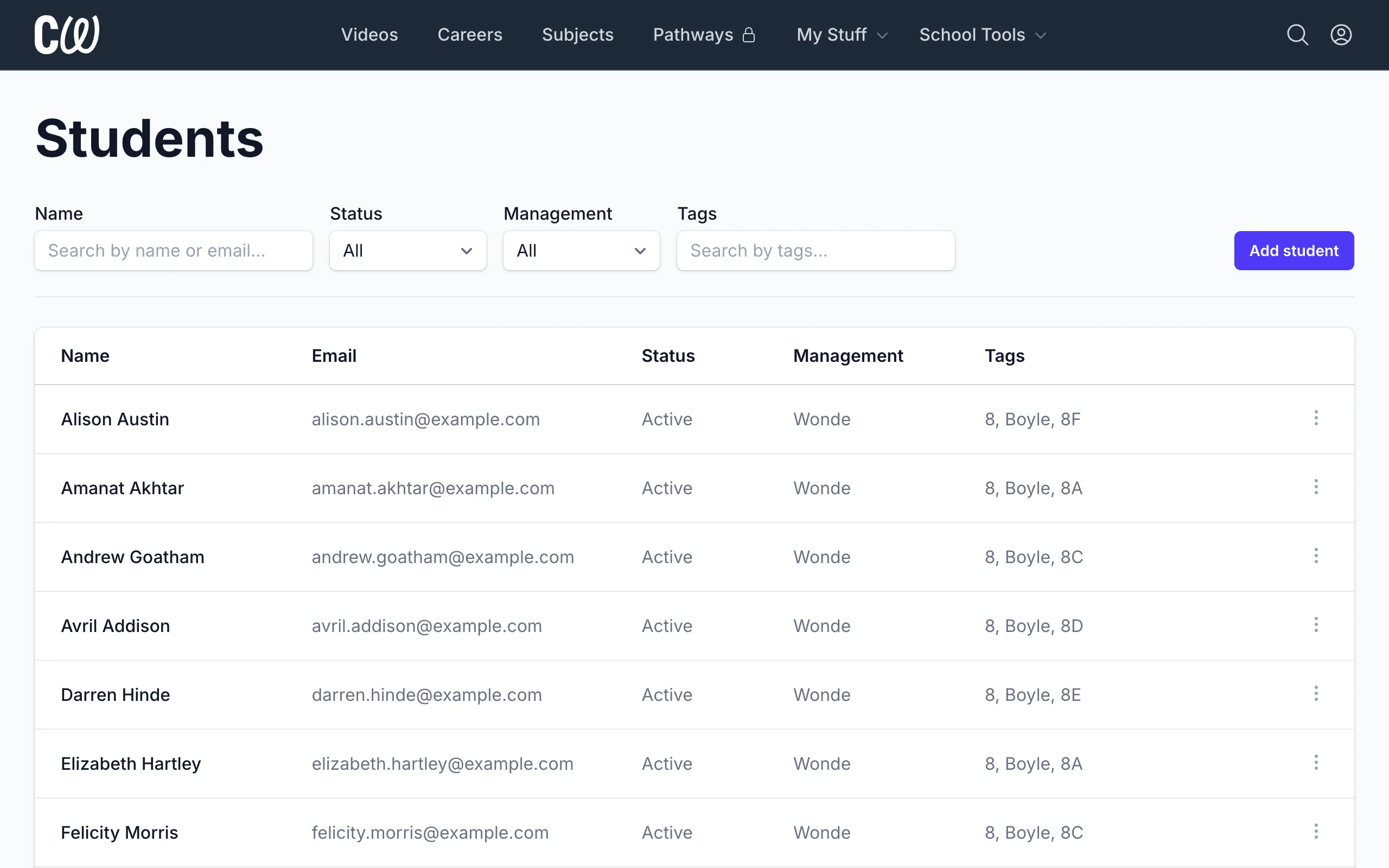
You can filter students by:
- Name (First/last name or email)
- Status (All / Active / Suspended)
- Management (All / Wonde / Manual)
- Tags (Year, Registration, House, etc)
Viewing a student’s activity
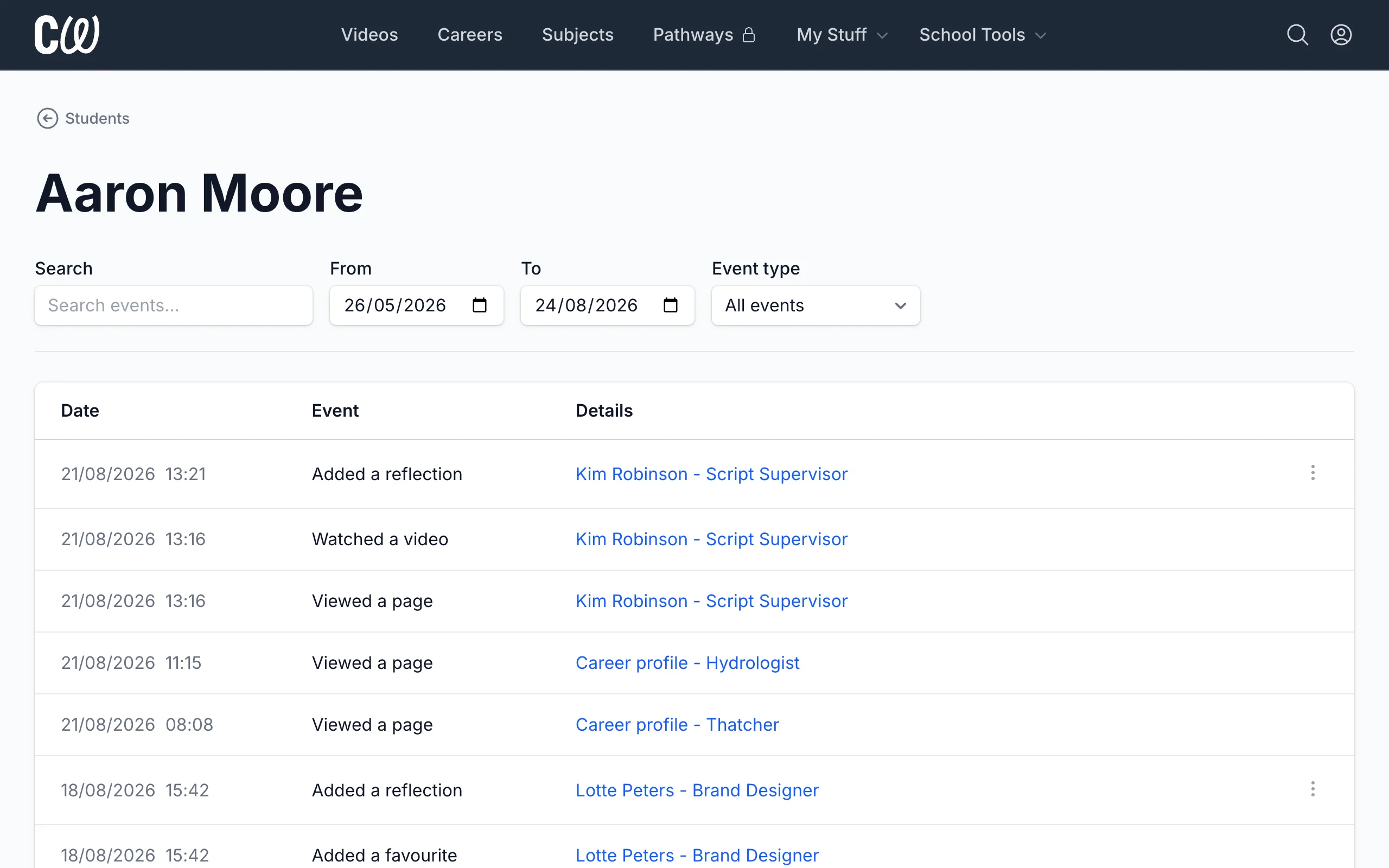
Student activity is recorded automatically while they're signed in to Coffee With.
Click a student’s name to see their recent activity when preparing for a parents’ evening or one-to-one careers conversation.
Synchronising students
Most schools use Wonde to synchronise student data from their MIS.
- A student added to your MIS appears in Coffee With the next day.
- A student changed in your MIS is updated in Coffee With the next day.
- A student deleted from your MIS is removed from Coffee With a week later.
You can't manually edit the student data that comes from your MIS: name, email, year, registration, house, and UPN.
Speak to your IT team if you have questions about your school's MIS data or Wonde sync.
Adding custom tags
Custom tags allow you to build your own groups: a careers club, a work experience cohort, or the students heading for apprenticeships.
You can use custom tags as filters on the Engagement page and in Gatsby Reports.
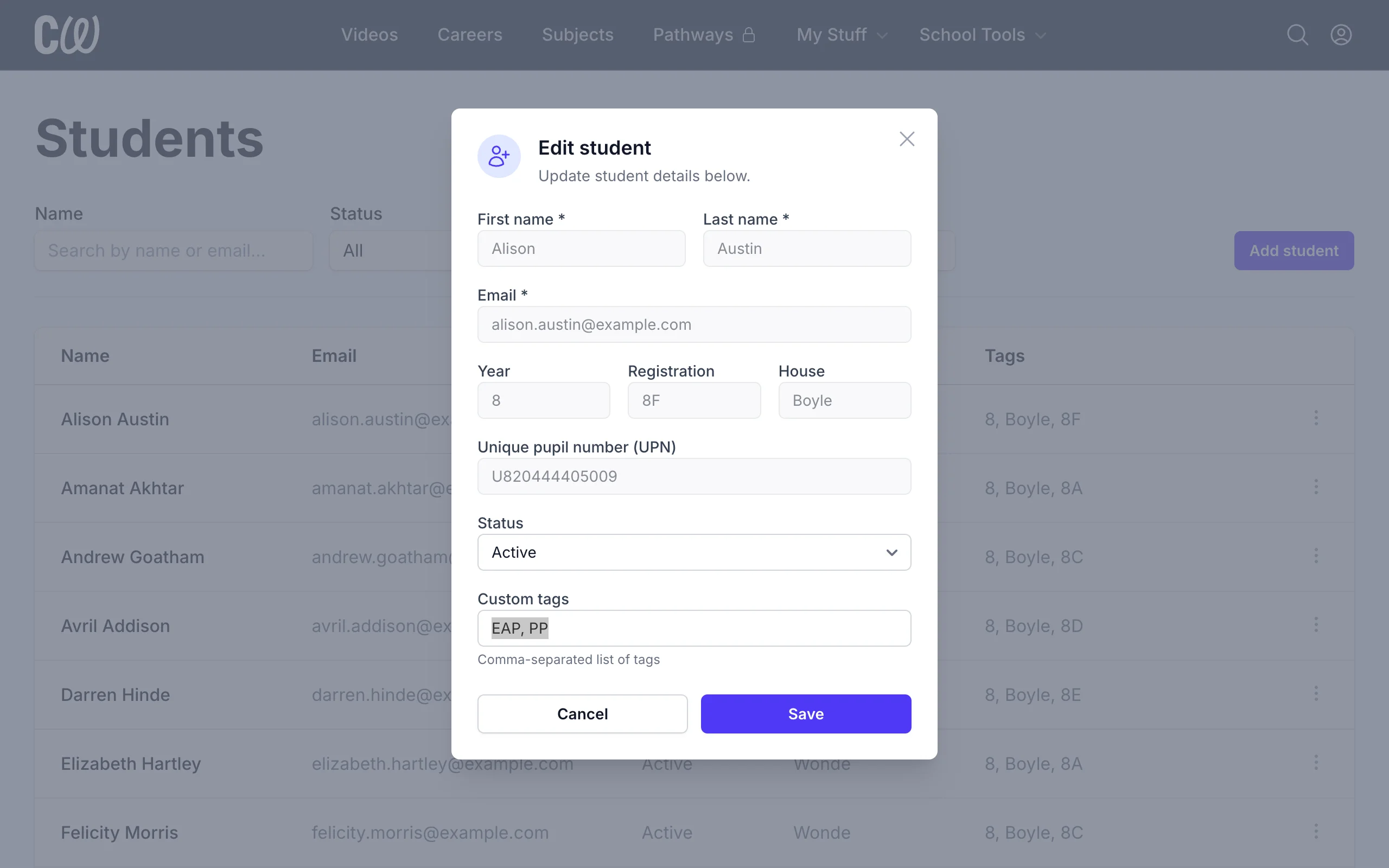
You must be an Admin to add or edit custom tags.
- Click ⋮ at the end of the student’s row and select Edit.
- Add a comma-separated list of tags in the Custom tags field.
- Click Save.
Adding students manually
Some schools don't use Wonde, and a school that does will occasionally need to add a student who isn't in their MIS.
Students added manually aren't linked to your MIS, so you'll need to update and delete them manually.
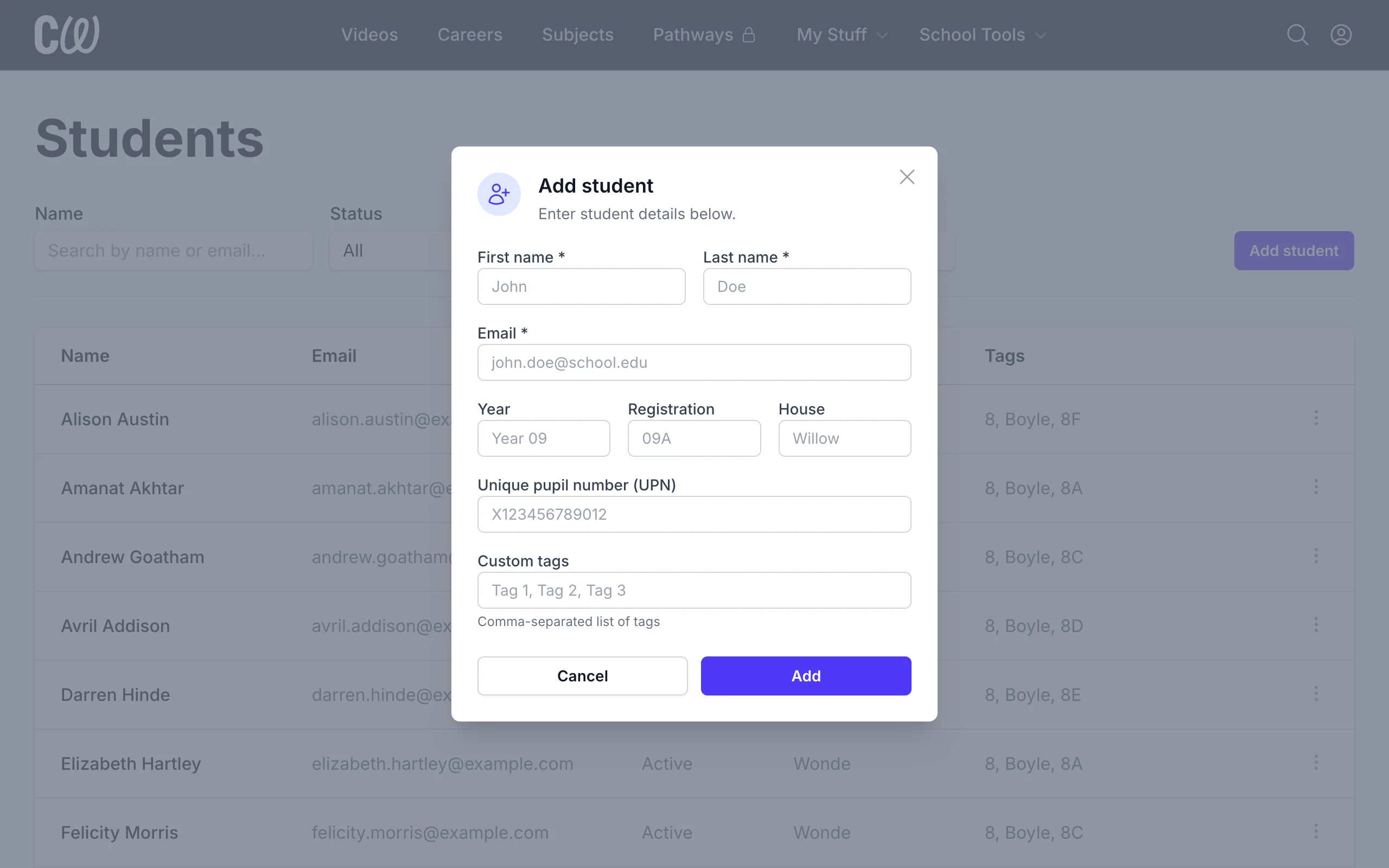
You must be an Admin to add or edit manual students.
- Click Add student, or select Edit from the ⋮ menu at the end of an existing student's row.
- Add or update the manual student’s details.
- Click Save.
Select Delete from the same ⋮ menu to remove a manual student, including their activity history. Deleted students can't be restored, so check you have the right one.
Things to know
- Students can be suspended instead of deleted, which blocks their access but keeps their record and activity.
- Manual students are converted automatically to synchronised students if they are found in the school MIS by Wonde. From that point onwards, their details will be synchronised with your school MIS.
- Students who created personal Coffee With accounts using their school email address are converted to school accounts when they’re added to your school.
- Student emails must use one of your school's approved email domains. For data protection purposes, you can’t add students using non-approved domains.
- Students can only belong to a single school.